Anyone who has flown with a boarding pass on their phone, or shown a cinema ticket at a scanner, already knows what a Wallet pass is. Fewer business owners have considered putting their own loyalty card there.
This guide covers what a Wallet card is, how customers get one, what happens when a stamp lands, and why nobody has to download an app.
What is a Wallet pass?
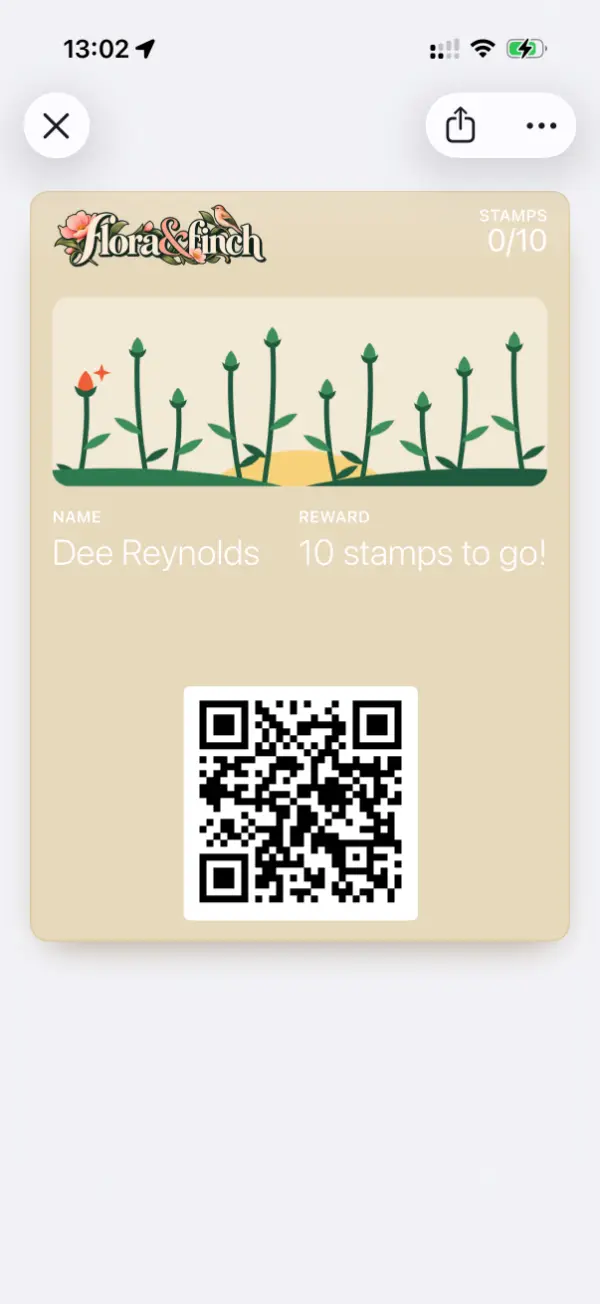
Apple Wallet is built into every iPhone. Google Wallet is on Android phones. Both do the same job: they hold things like bank cards, boarding passes and tickets. A “pass” is anything in there that isn’t a payment card, and a loyalty card is one kind of pass.
A StampMate card works in both, so it makes no difference which phone a customer has. In either Wallet, it shows:
- The business’s logo and colours
- Labels the owner chooses, in their own words
- How many stamps the customer has collected so far
It sits alongside everything else the customer carries on their phone. There is no card to find in a coat pocket and no “I’ve left it at home”.
How customers add it
Every business on StampMate gets its own join link, and every plan comes with a free countertop stand that shows it as a QR code by the till. The link can also be shared online, wherever customers already find the business. Joining takes three steps:
- The customer scans the QR code or taps the link.
- They enter their name and mobile number.
- They add the card to Apple Wallet or Google Wallet, which takes a couple of taps on either.
There is no account to set up and nothing to install. Joining fits comfortably into the time it takes to make their drink.
If someone joins twice with the same mobile number (a new phone, a card deleted by accident, or a forgotten sign-up), they get the same card back with their stamps intact.
How stamping works
Stamps are added with the StampMate NFC stamp, a small stamp-shaped device that sits by the till. The customer taps their phone on it, or it is pressed to their phone, and the stamp lands on the card in their Wallet. It works like a rubber stamp, but for phones.
The phone the card was added on is recognised automatically, so each visit is a single tap with nothing to type. A cooldown, 30 minutes by default, stops repeat taps, so one visit gets one stamp. Owners can change the cooldown to suit how their business works. More detail is on the tap to stamp page.
How the card updates by itself
When a stamp lands, the card on the customer’s phone updates on its own. There is nothing to refresh, re-download or open. The new stamp simply appears.
This means the card is always accurate. A customer can check it in the queue and see exactly how close they are to the reward, which is the kind of prompt that brings them back on Thursday instead of trying somewhere new.
Messages on their lock screen
Because the card lives in the customer’s Wallet, it can also carry news from the business. With promotions, the owner writes a message, such as “Quiet afternoon? Half-price cake till 4”, and it lands on customers’ lock screens through their Wallet card, on iPhone and Android alike. A promotion can go to everyone or to one customer, immediately or scheduled for later.
The Core plan includes two promotions a month, and Growth includes unlimited promotions. On either plan, customers are not flooded with messages: Apple and Google both cap how many alerts a single card can show in a day. Google’s limit is three per card in any 24 hours.
Growth also includes proximity notifications. When a customer is near the business, their card appears on their lock screen with a message the owner has written. This is useful when they are passing at lunchtime and have not yet decided where to go.
Why no app?
Most people have downloaded an app for a single shop and never opened it again. Asking a customer to find an app, download it, create an account and remember a password, with a queue behind them, is a lot to ask in exchange for a free coffee.
Apple Wallet is already on the customer’s iPhone, and Google Wallet is already on their Android phone. They know how it works, adding a card takes a couple of taps, and there is nothing new to learn.
It is simpler for the business too:
- There is no app to build, maintain or promote.
- Joining takes seconds, so more people sign up.
- The card lives somewhere customers look every day, not in an app buried on page four.
What happens when the card is full
The owner chooses how many stamps a card needs, anywhere from 4 to 10, picks the reward, and writes the message the customer sees when the card is full. The customer then claims the reward. More on the stamp cards page.
For an element of chance, spin the wheel comes with the Growth plan. When a customer fills their card, a prize is drawn from the business’s own prize wheel. The owner sets the prizes, how likely each one is, and how long a prize stays valid (seven days unless changed).
What owners see behind the counter
Card activity shows up in the dashboard: customers, stamps given and rewards claimed. Owners can also set up staff accounts with owner, manager and staff roles, so everyone on the team gets the right level of access.
Making the card match the brand
A Wallet card does not have to look generic. The pass designer offers 14 ready-made templates, or a card can be built from scratch. From there, add a logo, set the colours and change the labels. A live preview shows exactly what customers will see.
There are two plans: Core at £29 a month and Growth at £49 a month. Both come with unlimited customers, a free countertop stand and a 30-day free trial. Growth adds unlimited promotions, proximity notifications and spin the wheel. Full details are on the pricing page.
To see how a Wallet card would look for a specific business, open the pass designer and try it. No account is needed to design a card, only to download it.